girasol-tvbro-doc
Case Study: Meeting Room Schedule Signage at the Girasol Office Intercom
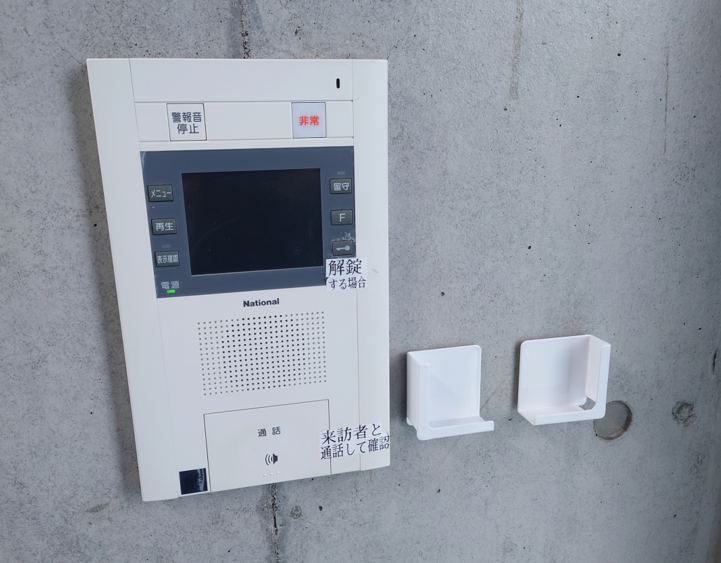
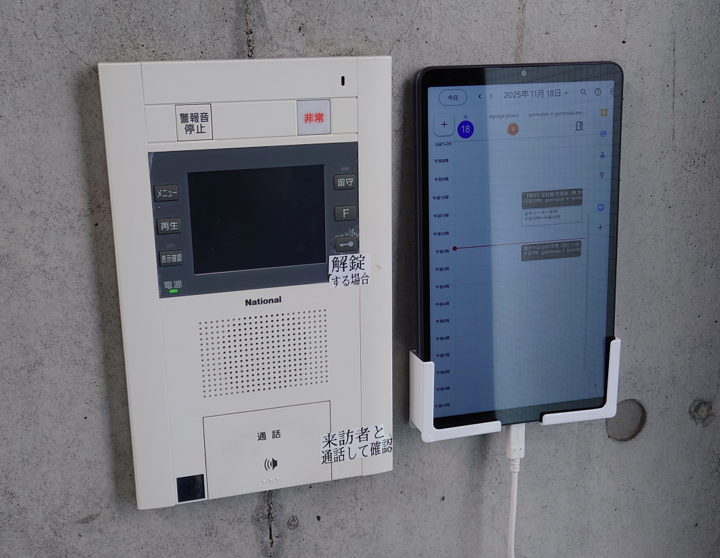
This is a deployment example of tablet-based signage placed beside the intercom at Girasol Energy Corporation’s office, showing the same-day meeting room booking timetable.
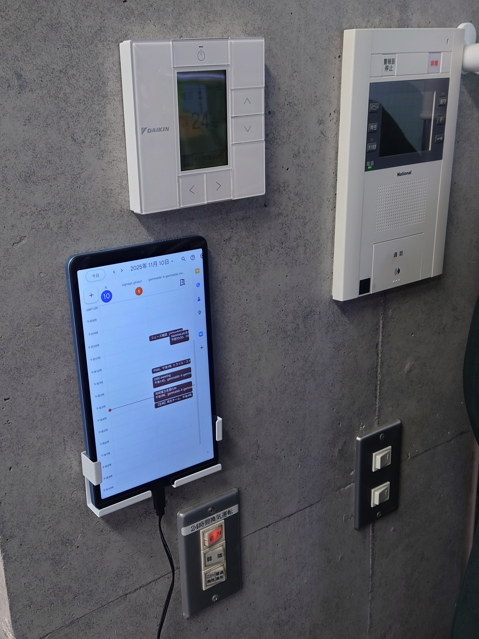
Table of Contents
- Case Study: Meeting Room Schedule Signage at the Girasol Office Intercom
- Table of Contents
- Deliverable
- Components Used
- Procedure
Deliverable
Signage that displays real-time meeting room booking status using Google Calendar.
Installation Location
- Girasol Energy Corporation
- Entrepreneur Plaza 5F Head Office
- Wall next to the intercom
Benefits
Previously, staff had to call out inside Office 501 to identify the visitor’s contact person. With immediate visibility of each meeting room’s reservation status, they can now quickly decide which floor to guide the visitor to.
Components Used
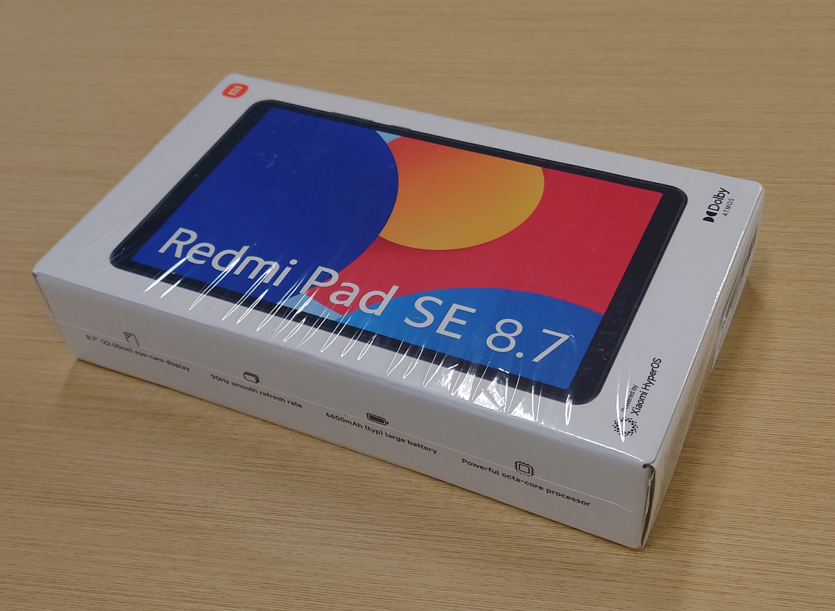
- Xiaomi Android tablet
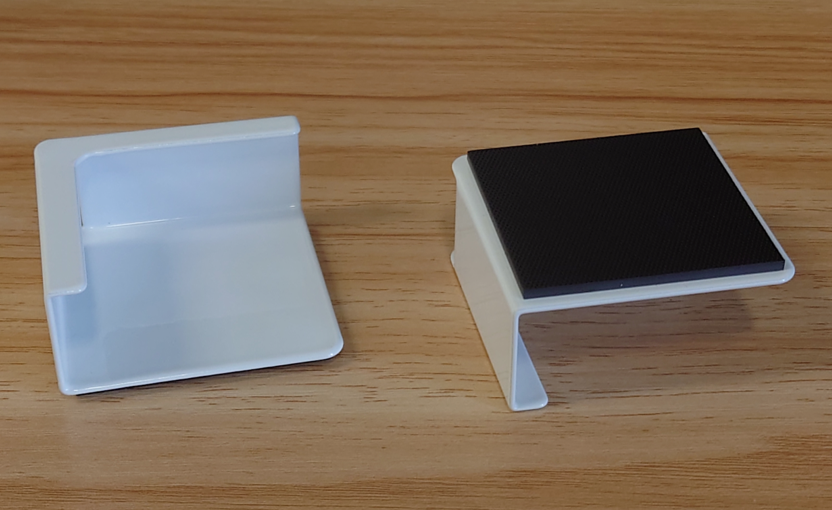
- Holder for wall mounting
- Google account for installation
- Production version of KanbanBro
Procedure
Purchase
Obtain the following product.
Initial Device Setup
Perform the general initial setup of the tablet.
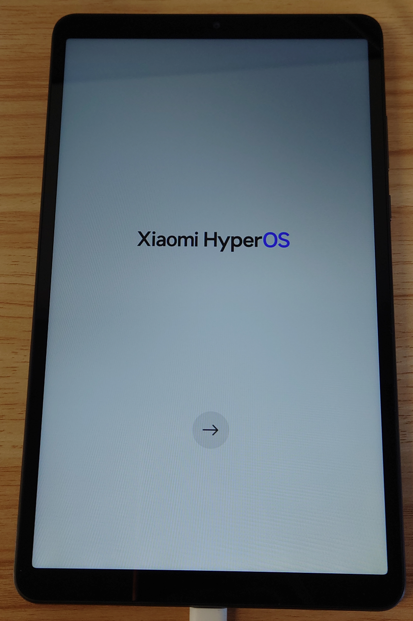
- Language: Japanese / Japan region
- Network: Configure as required for the environment
- Copy apps & data: Do not copy
- Google sign-in: Sign in with the Google account used on this device
- Google services: Leave all defaults
- Google services – Device backup: Turn backup ON
- Set screen lock: Skip
- Access Assistant with “OK Google”: Skip
- Access Assistant without unlocking: Skip
- Continue additional setup?: No
- Basic settings: Leave defaults
- Set password: Skip
- Continue additional setup?: No
Then apply all available system updates.
Install KanbanBro
Search Google Play for KanbanBro.
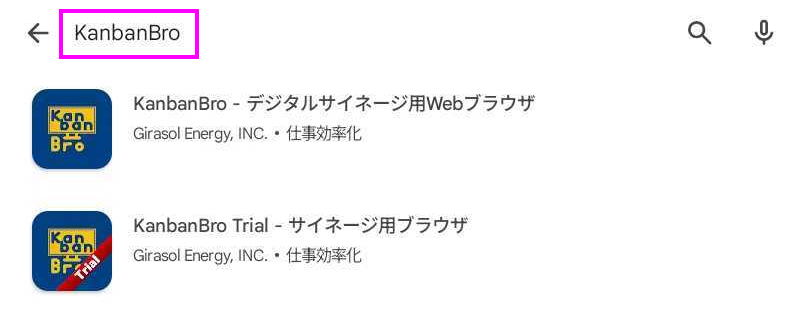
Install the paid or trial version of KanbanBro using the prescribed method.
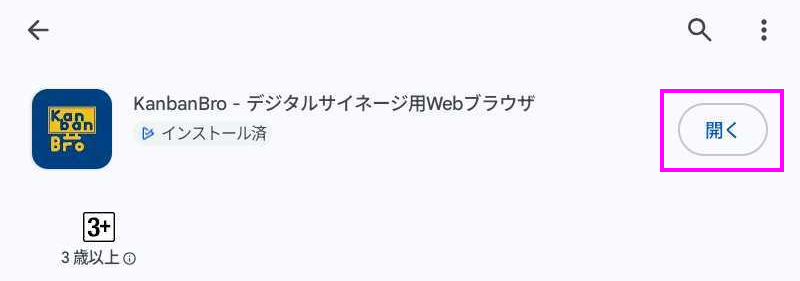
Additional Device Settings
Configure device settings so the KanbanBro screen remains constantly displayed.
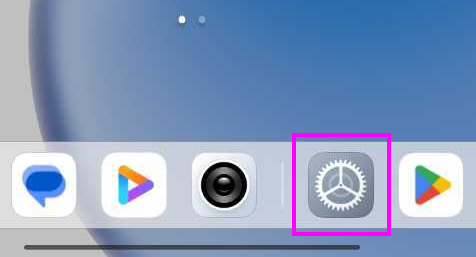
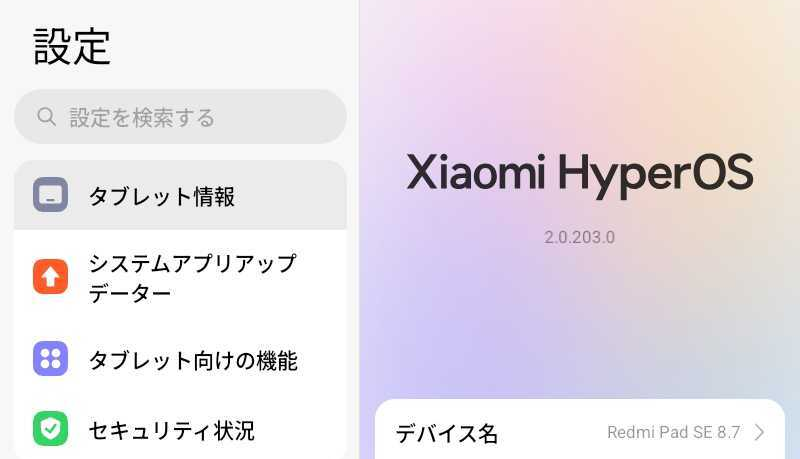
- Lock screen > Sleep: Never
- Apps > KanbanBro – Signage Browser > Battery > Battery saver: Unrestricted
- Apps > KanbanBro – Signage Browser > Permissions > Pause app activity if unused: Off
- Apps > KanbanBro – Signage Browser > Additional permissions > Open new windows while running in background: Always allow
Configure KanbanBro
When KanbanBro launches, its help page is shown.
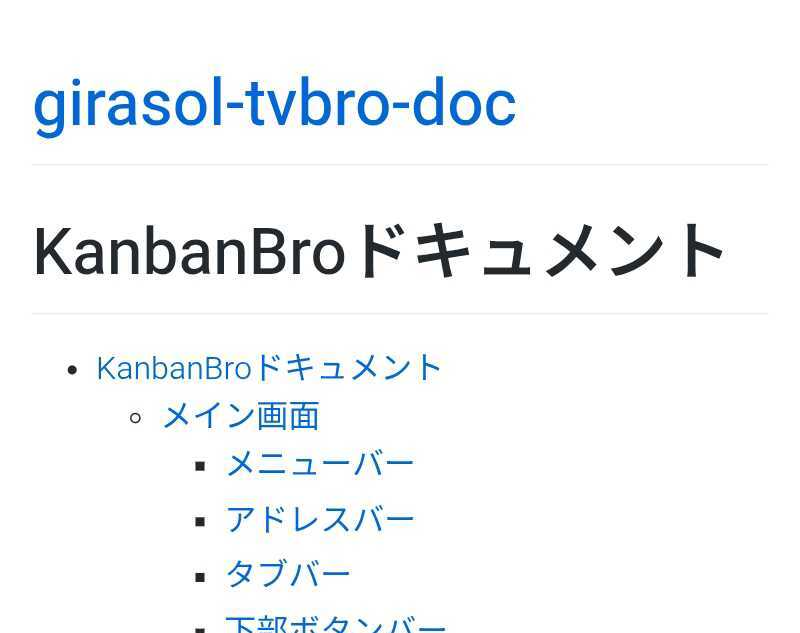
Use the device’s Back action to open/close the KanbanBro menu.
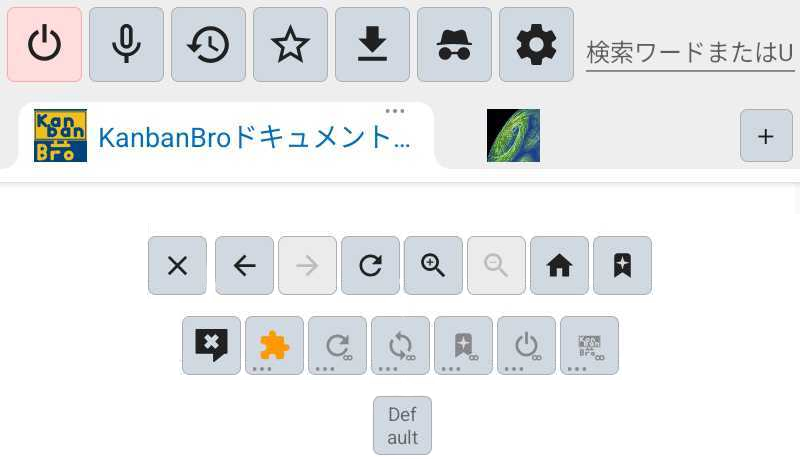
Device Behavior Settings via Bottom Buttons
From the bottom buttons, adjust settings to match the following.
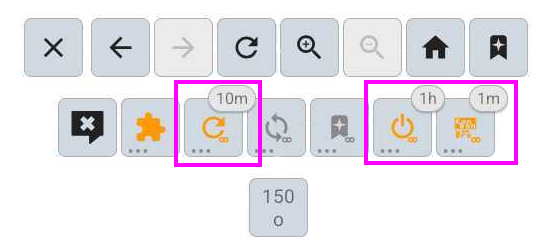
- Auto reload: On, every 10 minutes
- Auto app restart: On, every 1 hour
- Auto app recovery: On, after 1 minute
When enabling Auto App Recovery, grant the “Display over other apps” permission when prompted.
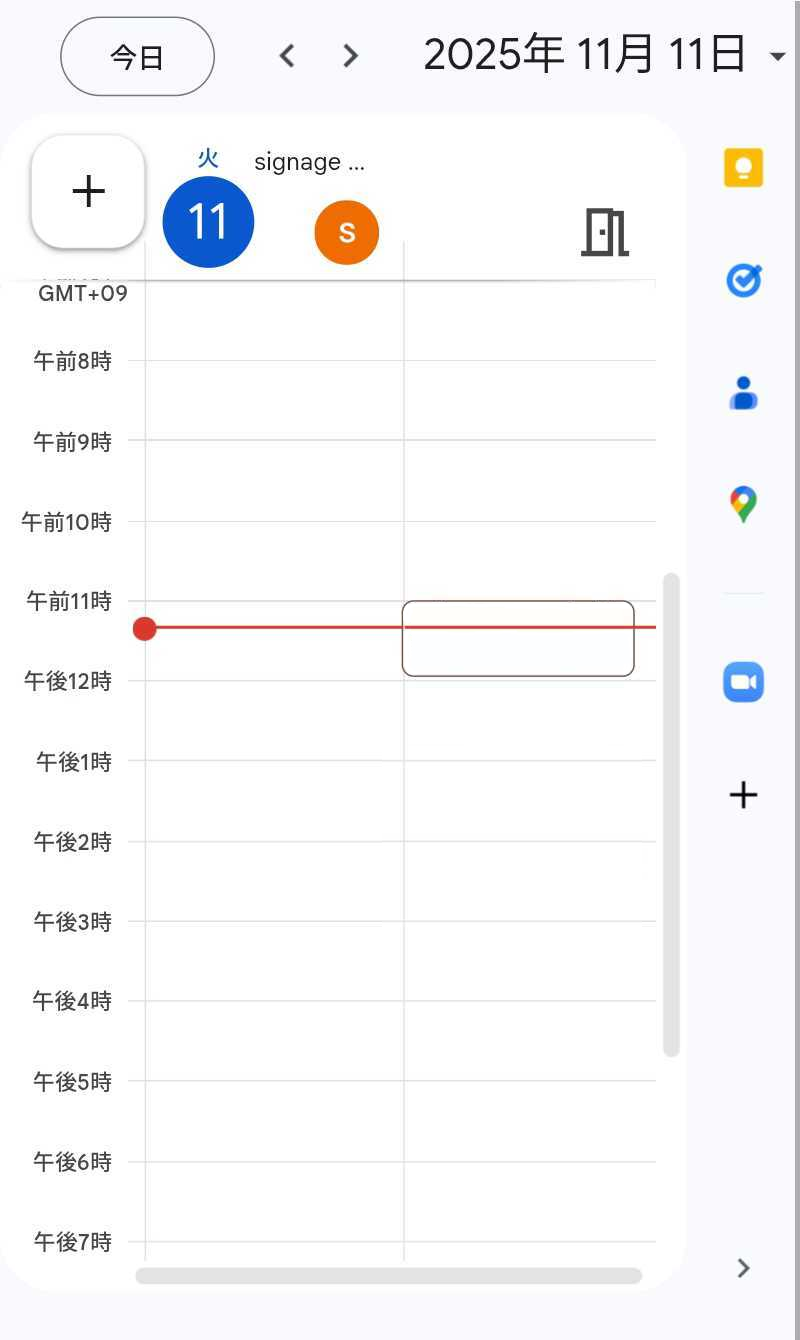
Display Google Calendar
Restrict Tabs to Only Google Calendar
In KanbanBro, keep only the following Google Calendar URL open:
- https://calendar.google.com/calendar/u/0/r/day
Close the default tabs.
Sign in to the Google Account
Sign in to the Google account when prompted, using the standard method.
Adjust Tab Display Size
Open the viewport mode settings from the bottom buttons.
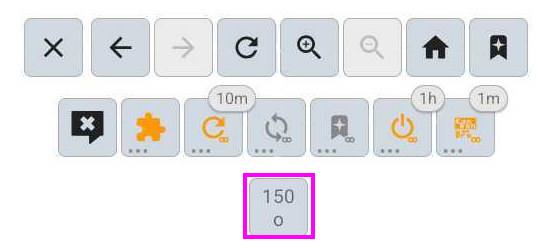
- Override tab settings: On
- Zoom factor: e.g. 150%
Close the viewport mode settings to apply the calendar display size.
Wall Mounting
Purchase a Tablet Holder
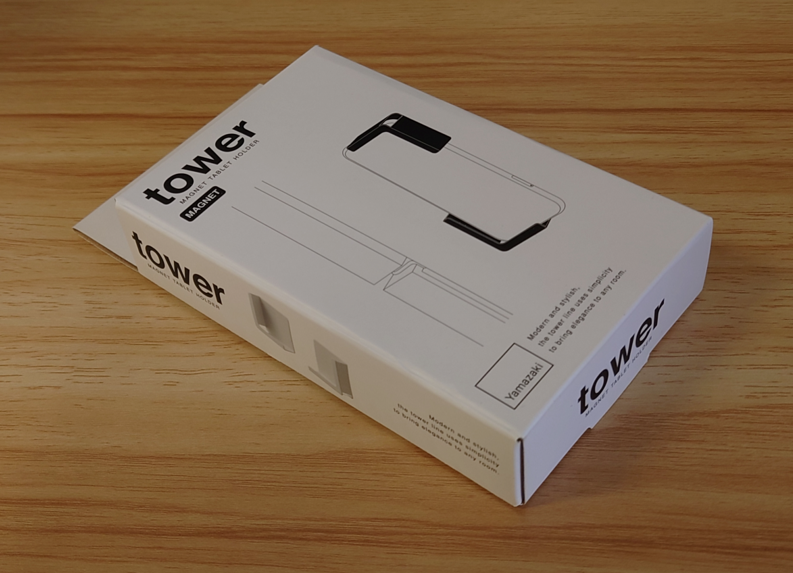
Purchase the following tablet holder:
Purchase Double-Sided Tape
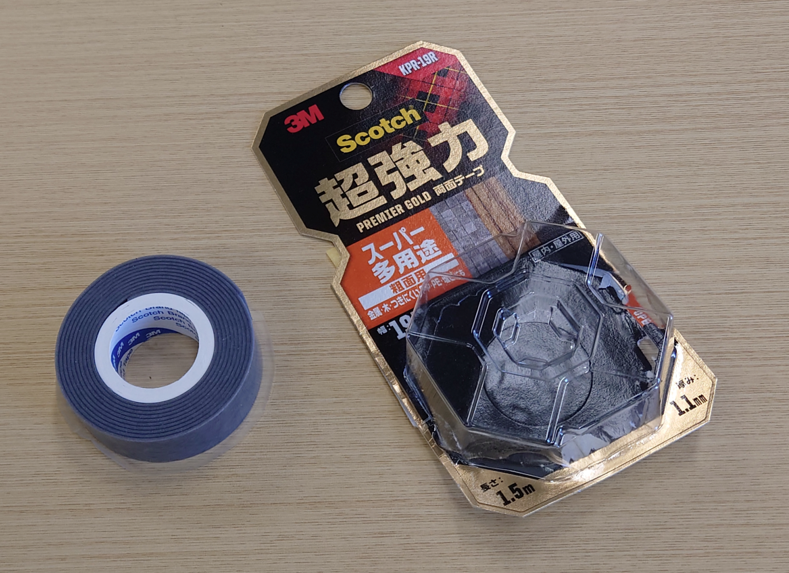
To attach the tablet holder to a non-magnetic surface, purchase the following automotive-grade double-sided tape:
Purchase a Power Cable
The tablet includes a USB Type-A to USB Type-C charging cable and an AC outlet to USB Type-A power adapter.
The included charging cable is relatively short, so you may need an extension cord depending on the installation location.
Installation
Apply the double-sided tape to the tablet holder.
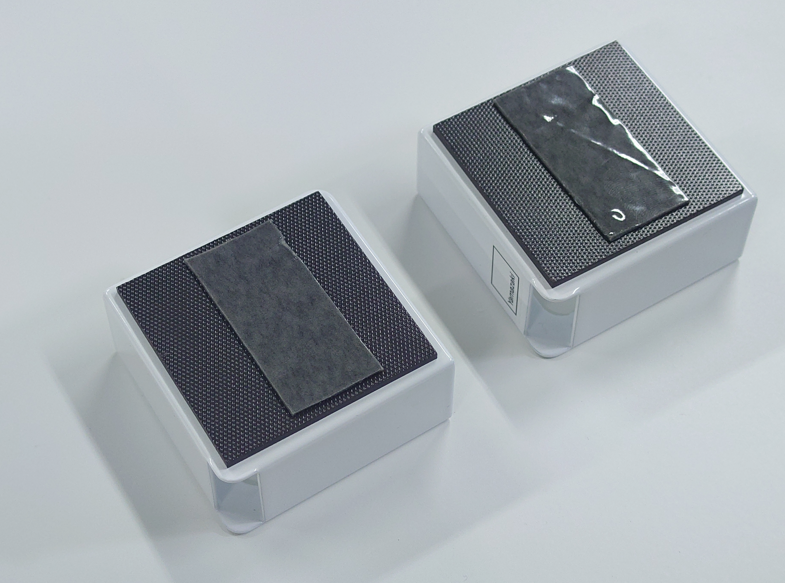
Affix the tablet holder to the wall and mount the tablet.